How to Install IPTV Smarters Pro on Smart TV (Samsung & LG)
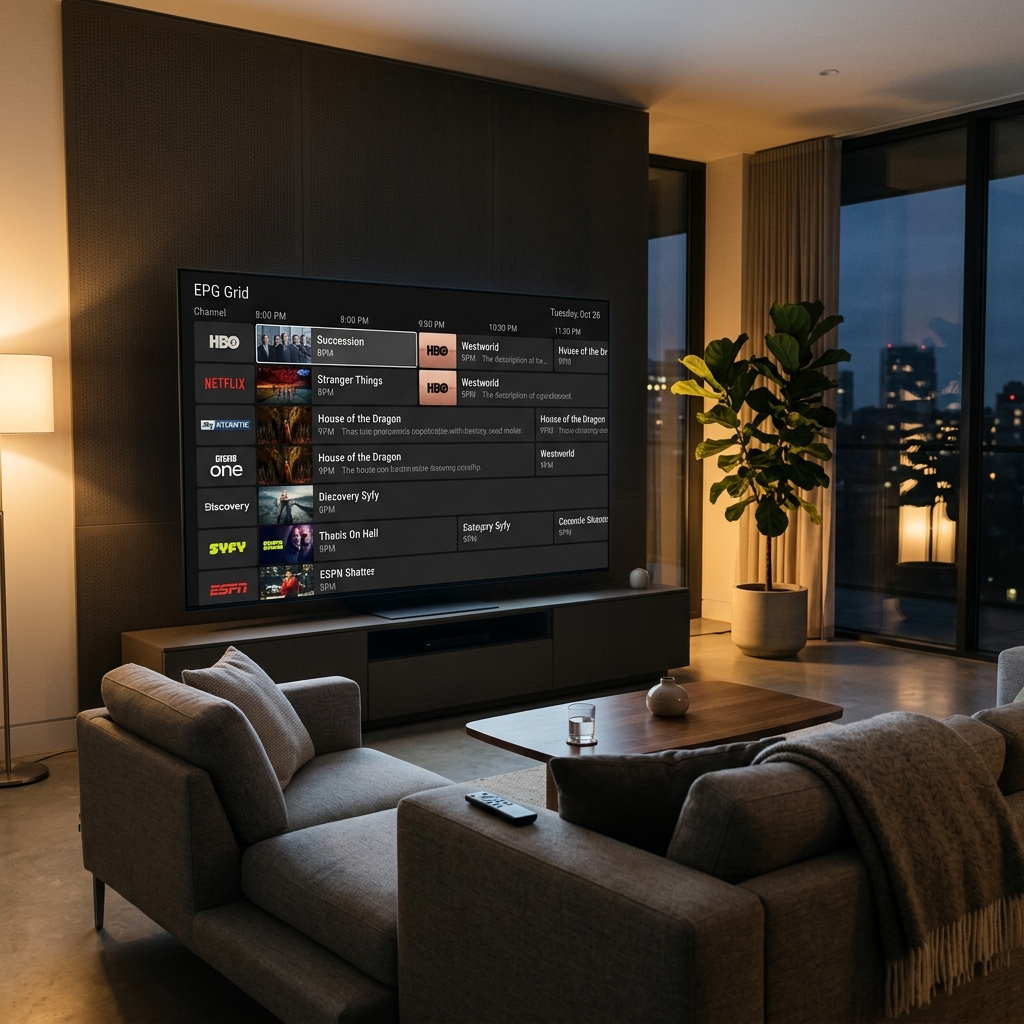
How to Install IPTV Smarters Pro on Smart TV (Samsung & LG)
If you own a modern Samsung or LG Smart TV, you don't necessarily need an external device like a Firestick to enjoy premium IPTV. You can install IPTV Smarters Pro directly from the native app store.
Here is the easiest way to get BritStreams 4K running natively on your TV.
For Samsung Smart TVs (Tizen OS)
- Press the Home button on your remote.
- Navigate to Apps and select the Search icon (magnifying glass) in the top right corner.
- Type "IPTV Smarters Pro".
- Select the app and click Install.
- Once installed, open the application and select "Add Your Playlist (via XC API)".
- Enter your BritStreams 4K credentials (Name, Username, Password, and URL).
- Click Add User and wait for the channels and VOD library to load.
For LG Smart TVs (WebOS)
- Press the Home button on your Magic Remote.
- Open the LG Content Store.
- Go to the Search icon at the top and type "IPTV Smarters Pro".
- Install the application and launch it.
- Accept the Terms of Service.
- Select "Login with Xtream Codes API".
- Input the details provided by the BritStreams team.
Troubleshooting
- App not found? Ensure your TV's region is set to the UK. Some older TVs (pre-2017) might not support the app.
- Channels not loading? Double-check that there are no typos in the Portal URL. It must be entered exactly as provided, including "http://".
Enjoy your seamless viewing experience natively on your Smart TV!